Book My Luck
Mac Menu Bar Apps Explained for Non-Engineers

Mac menu bar apps are small programs that live in the thin strip across the top of your screen, usually as a little icon near the clock. They run quietly in the background and give you a glance or a quick action without opening a full window, and many never appear in the Dock at all.
Most explanations jump straight to recommendations. Before that, it helps to understand what this strip actually is and why so many of the best small Mac apps choose to live there.
What is the Mac menu bar, really?
The menu bar is the horizontal strip at the very top of your Mac's screen. Its left side shows the menus for whatever app you are using, and its right side, near the clock, holds status icons.
That right side is where menu bar apps put themselves. It is prime real estate: always visible, never covered by a window, and reachable no matter which app is in front.
An icon in that strip can show you something at a glance, a battery level, the weather, a timer, or open a small panel when you click it. It does the job of a whole app in a fraction of the space.
The strip has been part of the Mac since the very first one, so these apps are not a new fashion. They are one of the oldest and most trusted patterns on the platform, which is why so many polished tools still choose it.
The menu bar and the Dock are different places. The Dock, usually at the bottom, holds full apps you switch between. The menu bar holds small tools and status icons that stay out of your way.
How do menu bar apps differ from normal apps?
The difference is mostly about presence. A normal app wants your attention and a window; a menu bar app wants to be nearly invisible until needed.
Here is the plain comparison.
| Trait | Regular Dock app | Menu bar app |
|---|---|---|
| Where it lives | Dock, with a window | Top strip, near the clock |
| Dock icon | Yes | Often none |
| How you use it | Open and switch to it | Glance or click the icon |
The "often none" in that middle row is the key. Many menu bar apps deliberately skip the Dock icon so they do not clutter your app switcher, which is why you can be running six of them and not realise it.
This is also why menu bar apps feel calm. They do not pull you into a window; they sit at the edge and wait, which suits anything you want present but not demanding.
There is a practical upshot for a laptop. Because these apps do so little on screen, the good ones sip power and stay out of the way of the work that actually needs your machine's attention.
What are Mac menu bar apps good for?
They shine at two things: showing you something at a glance, and letting you fire a quick action. If a task needs a real workspace, a full window app is the better tool.
Common, well-loved categories include a clock or world-time readout, a clipboard history that remembers what you copied, and a weather glance so you do not open a browser for it. Each earns its spot by being faster than opening a full app.
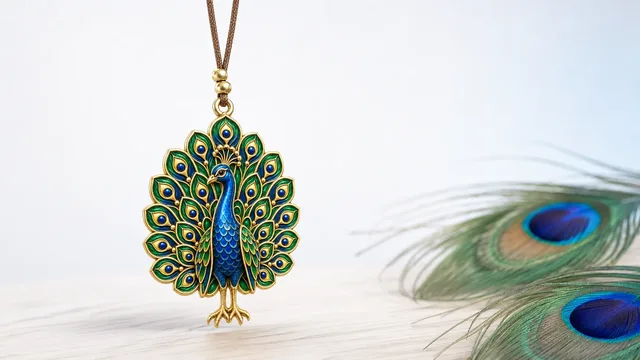
There is a quieter category too: small tools that add a little life or ritual to your day without getting in the way. A charm that hangs from the top of your screen belongs here, present at the edge, out of the work.
Timers and focus tools are another favourite. A pomodoro countdown or a "do not disturb" toggle in the strip is exactly the kind of thing you want one click away and never buried in a window.
A good test before adding a menu bar app: would you rather glance than open a window for this? If yes, the menu bar is the right home. If you need to sit and work in it, it belongs in the Dock.
Not everything in the menu bar is glance-only. Some tools, like the one described in hanging a charm on your Mac screen, live behind a menu bar icon but draw a small visible element on the screen itself.
What makes a menu bar app good rather than annoying?
The best ones share a short list of habits. Hold any candidate against these before you let it into your top strip.
It stays light
- Why it matters: it runs all day, so it must not drain battery or spin the fans.
- What to look for: low, steady resource use, covered in does a menu bar app slow down your Mac.
It stays out of the way
- Why it matters: the menu bar is shared space near your real work.
- What to look for: it hides cleanly, and anything it draws on screen does not block your clicks.
It respects your keyboard
- Why it matters: reaching for the mouse for every tiny action gets old.
- What to look for: global hotkeys, the kind explained in Mac hotkeys for menu bar apps.
An app that hits all four disappears into your day in the best way. You feel its benefit and never its presence, which is the whole point of living in the strip rather than the Dock.
Opening it shows a small window where you activate the app and find its menu; the rest of the time it just sits at the edge. It hangs a lucky charm from the top of your screen on a thin cord with real rope physics, and everything under the charm clicks straight through so it never blocks your work.
A note in the spirit of honesty: a charm is a charm, not a promise. It marks a moment and steadies you the way a pre-game ritual does, and it makes no claim about outcomes.
It is a useful case study precisely because it does so little on screen. No dashboard, no feed, no window to manage, just an icon in the strip and a charm at the edge. That is the shape of a menu bar app that respects your attention: it earns its keep with one small, well-made thing and then stays quiet. Judge any menu bar app you are considering by whether it can be that disciplined, and you will end up with a top strip full of tools you actually like rather than a row of icons you keep meaning to remove.
If you like the idea of small, characterful tools up there, the roundup of cute Mac apps that live in the menu bar is a friendly next stop. Book My Luck is a one-time purchase with no subscription; the pricing is a single payment for your Mac.
What are Mac menu bar apps?
They are small programs that live in the strip at the top of your screen, usually as an icon near the clock. They run in the background and give you a glance or a quick action without opening a full window.
Do menu bar apps show up in the Dock?
Often not. Many are built to skip the Dock icon so they do not clutter your app switcher, which is why you can run several without noticing them there.
Are menu bar apps safe to leave running all day?
The well-made ones are. Look for low, steady resource use and no constant notifications or account demands, and the app should sit quietly until you need it.
How do I open or quit a menu bar app?
Click its icon in the top strip to open its panel or menu, which usually includes a quit option. Some also respond to global hotkeys so you can act without the mouse.
Can a menu bar app draw things on my screen?
Yes. Some go beyond the strip and show a small element on the screen itself, like a charm on a cord. A good one makes sure that element clicks through so it never blocks your work.
What is the difference between the menu bar and the Dock?
The menu bar is the top strip that holds app menus and small status tools. The Dock, usually at the bottom, holds full apps you open and switch between.
Book My Luck today
Book My Luck is a desktop decoration for macOS 14+ and Windows 10/11. The desktop outside the charm remains clickable. The current Mac and Windows downloads are version 1.0.32, signed by KAK DIGITAL LLC. On Mac, Charm Centre controls size, cord length, placement, displays and motion. Collections and controls can differ between Mac and Windows.
There is no calendar integration, booked-moment scheduler or native-app free trial. Explore the website demo and regional pricing. One key activates one computer at a time; activation and license refresh require internet. Preferences are local, but purchasing, activation and website analytics use online services described in the privacy policy.
Hang one for the moment that matters
Book My Luck hangs a rendered charm from your Mac or Windows screen, with rope physics and manual interaction. Check the current platform release and regional price before buying.
Get Book My Luck →