Book My Luck
Apps for Multiple Monitors: One Charm Per Screen
The best mac multiple monitors apps treat each display as its own calm space rather than one sprawling desktop: a window manager to place apps, a menu-bar tool to keep the bar tidy, and, if you like a personal touch, a charm that gives exactly one object per screen. Good multi-monitor apps reduce the friction of moving between displays instead of adding clutter to each one.
Most multi-monitor guides stop at window snapping, which misses how quickly a second and third screen turn into visual noise if nothing keeps them calm.
What makes an app good on multiple monitors?
A multi-monitor app is good when it respects each display as a separate place. It should let you keep different work on different screens without them bleeding into each other.
The two jobs that matter most are placement and calm. Placement means getting windows where you want them fast; calm means each screen stays legible rather than crowded.
Watch for apps that assume a single screen. Per-display behavior is the feature that separates a real multi-monitor tool from one that merely tolerates a second display.
The best of them also remember your layout, so plugging in an external monitor snaps your apps back to where they belong instead of scrambling them.
These are categories, not brands. We describe what multi-monitor tools should do so you can judge any of them, whether it manages windows, the menu bar, or an on-screen object.
Which apps actually help a multi-monitor setup?
A small kit covers most needs. You rarely want more than one tool per job.
Window managers snap apps into halves, quarters, and specific displays with a keystroke, and restore layouts when you connect a monitor. This is the single biggest win for multi-screen work.
Menu-bar tidiers keep the bar clean on your main display, which matters more when your eyes travel across screens. See our menu bar apps guide.
Focus tools help you dedicate a screen to deep work while reference material sits on another. Our best Mac apps for a calm desk fit here.
Overlays and charms add a personal or informational layer per screen. The key question is whether the app treats each display separately, which we cover in Mac overlay apps compared.
Why one charm per screen keeps displays calm
More screens tempt you to add more decoration, and that is exactly how a multi-monitor desk becomes noisy. The fix is a strict limit: one object per display.
A charm that hangs one item per screen enforces that limit for you. Each monitor gets a single object at the top edge, so the display is marked as yours without turning into a gallery.
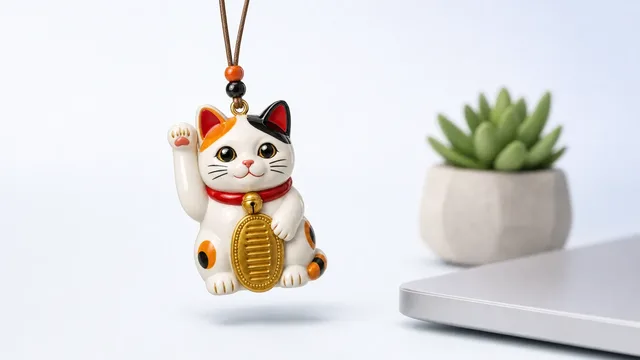
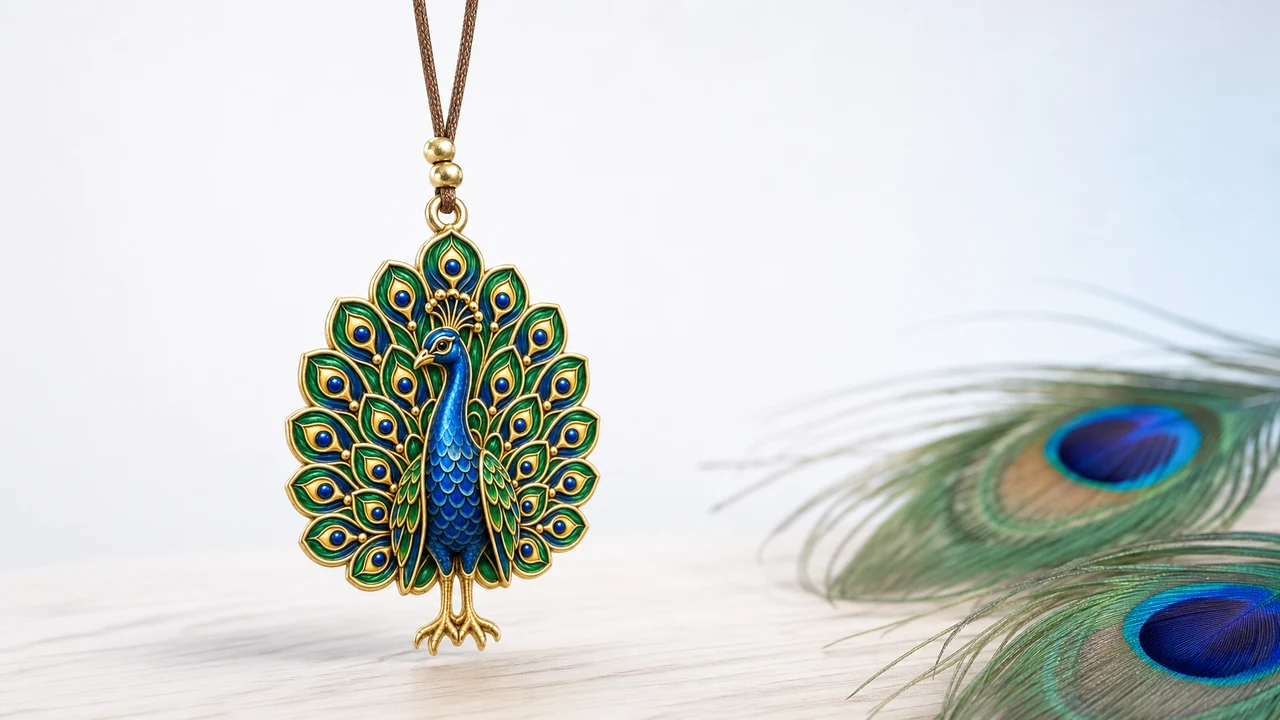
Book My Luck does this by design: one charm per screen on multi-display Macs, hanging from the top edge in a click-through layer so it never blocks a window on any monitor. You might hang a nazar over your coding screen and a horseshoe over your reference screen, each swaying quietly on its own display. The mechanics are in how a hanging charm works.
One honest note, since a charm is a good-luck object. A charm is a charm, not a promise; it marks a moment and steadies you the way a ritual does, and it changes no outcome. Its value on three screens is the same as on one: presence, not magic.
Give each screen a job and a single object. Deep work on one, reference on another, communication on a third, with one calm charm per display, and your eyes will always know where they are.
A small comparison: multi-monitor tool roles
Each tool plays a distinct role across your displays. Here is how the roles divide.
| Tool | What it does across screens | Keeps calm by |
|---|---|---|
| Window manager | Places and restores windows per display | Fast, tidy placement |
| Menu-bar tidier | Cleans the bar on the main screen | Fewer icons to scan |
| Charm | One object per display | A strict one-per-screen limit |
The window manager does the heavy lifting, the tidier reduces scanning, and the charm gives each screen a small identity. Together they keep a two- or three-monitor desk from feeling scattered.
Do multi-monitor apps slow down a Mac?
Extra displays already ask more of your graphics, so the apps you add on top should be light. Favor tools that rest when idle over ones that animate or poll constantly.
Window managers and menu-bar tidiers are typically very light, since they act only when you invoke them. A charm that sways briefly and then settles is idle most of the time, so one per screen stays cheap even across three displays.
Setting up a calm multi-monitor desk
Start with a window manager and teach it your layouts, so plugging in a monitor restores your apps automatically. Then tidy the menu bar on your main screen.
Give each display a clear job, and resist the urge to decorate every one. If you want a personal touch, add a single charm per screen so each display feels yours without becoming busy.
That is a complete multi-monitor kit: place windows fast, keep the bar clean, and mark each screen with one calm object. If the per-screen charm appeals, Book My Luck's pricing is a one-time purchase, with Extra Lucky adding every future charm we ever ship if you want the app to keep growing.
How do I give each screen its own identity?
The point of separate screens is separate purpose, and a small visual marker helps your brain switch context as your eyes move. When each display looks a little different, you stop losing track of which screen holds which kind of work.
A charm is a light way to do this. A nazar over the screen where you write code and a horseshoe over the screen where you keep reference material turns two identical panels into two distinct places, without any heavy theming. One object, one identity per display is enough.
Pair the marker with a job. Deep work on the screen with the calm charm, communication on the screen you check between tasks, reference on the third; the object and the purpose reinforce each other, so a glance tells you where you are.
Because each charm rests on its own top edge and clicks through, none of this costs you space or blocks a window. You get the wayfinding benefit of distinct screens with none of the clutter that usually comes from decorating more than one display.
Handling monitors that come and go
Laptops complicate multi-monitor life, because you dock and undock and the screen count keeps changing. Good multi-monitor apps handle that gracefully rather than scrambling your layout each time.
A window manager that remembers layouts is the key piece, since it can restore your apps to the right displays the moment you reconnect a monitor. That alone removes most of the friction of a portable setup.
A per-screen charm should follow the same logic: one object on whatever screens are currently attached, appearing on the external display when you dock and tidying itself away when you unplug. The behavior stays consistent whether you are at one screen or three, so the setup feels the same at your desk and on the move. And as ever, keep the honest frame: the charm marks your moments across those screens, it does not change what happens on them.
What apps help with multiple monitors on a Mac?
A window manager to place and restore windows per display, a menu-bar tidier to keep the bar clean, and focus tools to dedicate a screen to deep work. If you like a personal touch, a charm that hangs one object per screen adds identity without clutter.
Can I have a different charm on each monitor?
Yes. A charm app that supports multi-display setups hangs one charm per screen, so you can put a nazar over one monitor and a horseshoe over another. Each stays in a click-through layer and never blocks a window.
Do multiple monitors slow down a Mac?
Extra displays do ask more of your graphics, so keep the apps you add light. Window managers and menu-bar tools act only when invoked, and a charm that rests when idle costs little, so a calm kit stays fast across several screens.
How many Macs does one charm license cover?
It depends on the edition. Book My Luck's Lucky covers one Mac and Extra Lucky covers three; on a multi-display Mac the charm still shows one object per screen, and a single license covers all the screens attached to that machine.
Will a charm on every screen bring me luck?
No. A charm marks a moment and steadies you the way a ritual does, whether you have one screen or three, and it changes no outcome. Enjoy the one-per-screen calm as a personal touch, not as a guarantee.
Book My Luck today
Book My Luck is a desktop decoration for macOS 14+ and Windows 10/11. The desktop outside the charm remains clickable. The current Mac and Windows downloads are version 1.0.32, signed by KAK DIGITAL LLC. On Mac, Charm Centre controls size, cord length, placement, displays and motion. Collections and controls can differ between Mac and Windows.
There is no calendar integration, booked-moment scheduler or native-app free trial. Explore the website demo and regional pricing. One key activates one computer at a time; activation and license refresh require internet. Preferences are local, but purchasing, activation and website analytics use online services described in the privacy policy.
Hang one for the moment that matters
Book My Luck hangs a rendered charm from your Mac or Windows screen, with rope physics and manual interaction. Check the current platform release and regional price before buying.
Get Book My Luck →