Book My Luck
Mac Overlay Apps: Widgets, Pets and Charms Compared
Mac overlay apps float on top of your normal windows, and the three common kinds are widgets that inform you, pets that entertain you, and charms that mark a moment and stay calm. The right overlay depends on whether you want data, company, or a quiet cue, and on how well each one gets out of your way.
Most roundups lump these together as "floating things," which hides the real question: how much of your attention does each one take back.
What are Mac overlay apps?
An overlay app draws a window that sits above your other apps. Instead of living in its own space, it hovers over whatever you are doing.
The best overlays are designed not to interfere. They either sit in a corner or pass your clicks straight through, so they add to the screen without blocking it. That click-through behavior is covered in depth in our piece on click-through overlays.
Overlays vary wildly in how loud they are. A tiny clock is nearly silent, while a roaming animated creature is anything but, and that spread is exactly what this comparison is about.
These are categories, not brands. This post compares what widgets, pets, and charms do as overlays, so you can pick by behavior rather than by any single product.
What kinds of Mac overlay apps are there?
Three families cover most of what people install. Each answers a different want.
Widgets show information: a clock, weather, calendar, system stats, or now-playing track. They inform at a glance and are usually static, so they rest when you ignore them.
Pets show life: an animated creature that wanders the screen, reacts to your cursor, and asks for attention. They entertain, at the cost of near-constant motion. Our desktop pet versus charm piece digs into that trade.
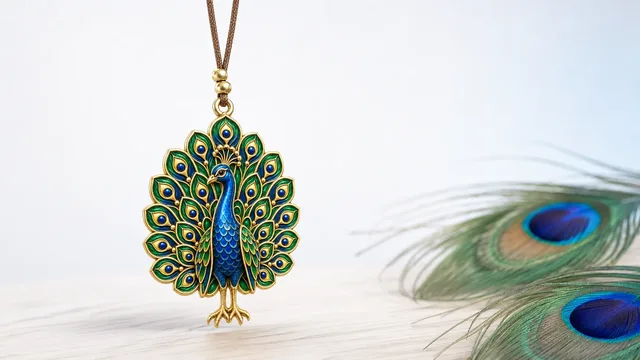
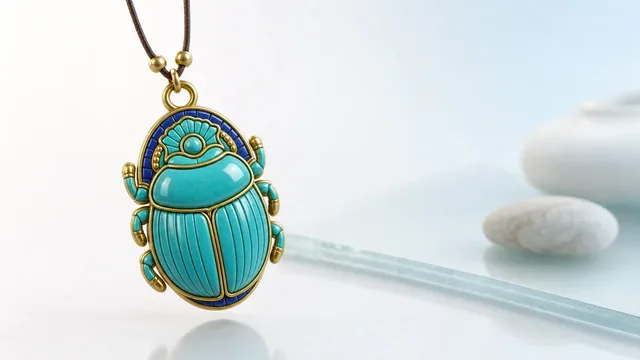
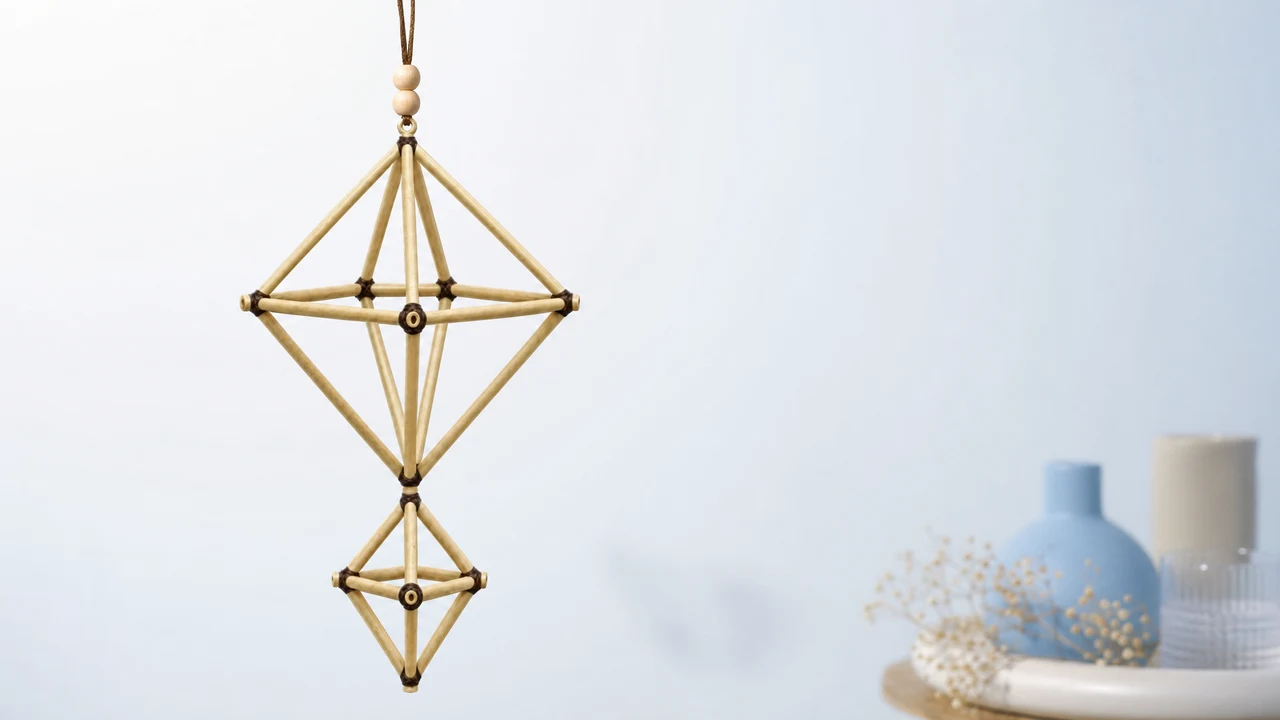
Charms show meaning: a single lucky object hanging on a cord that sways gently and clicks through everything beneath it. They mark a moment and stay calm, so they add warmth without pulling your eye.
A fourth, smaller group covers annotation and heads-up tools, but for everyday desks these three are the ones people choose between.
Mac overlay apps compared
The overlays differ most in attention cost and in whether they block your work. Here is the honest side-by-side.
Widgets
- What they give: information at a glance.
- Attention cost: low; usually static.
- Blocks your work? No, if placed in a corner.
- Best for: people who want a clock, weather, or stats always visible.
Pets
- What they give: company and play.
- Attention cost: high; constant motion pulls the eye.
- Blocks your work? Rarely, but can wander into your eyeline.
- Best for: people who enjoy a lively screen and are not easily distracted.
Charms
- What they give: a calm, meaningful cue.
- Attention cost: very low; sways then settles.
- Blocks your work? No; clicks pass straight through.
- Best for: people who want warmth and ritual without noise.
The pattern is clear. Widgets and charms sit at the calm end, while pets sit at the lively end, and your temperament decides which end suits you.
Which overlay suits a calm desk?
For a calm desk, favor overlays that rest and pass clicks through. That points to a corner widget or a charm rather than a roaming pet.
A charm is a strong pick because it combines calm with meaning. It hangs from the top edge, sways when you move the cursor, and clicks straight through, so it decorates and marks a moment without ever becoming a distraction.
One honest note, because charms carry tradition. A charm is a charm, not a promise; it marks a moment and steadies you the way a lucky pen or a pre-game ritual does, and it changes no outcome on its own.
If you are not sure which overlay you want, start with the calmest one and add liveliness later. It is easier to add a pet than to unlearn a distraction you have gotten used to.
Do overlay apps slow down or clutter a Mac?
Two things decide that: animation and count. An overlay that constantly redraws the screen costs more power than one that mostly holds still.
Widgets and charms are usually light because they rest when idle. Pets cost more because they animate to stay charming, so run one at a time and watch your battery.
Clutter is about restraint, not the category. One well-placed overlay reads as intentional; five stacked overlays read as noise. For where overlays fit alongside menu-bar tools, see our menu bar apps guide, and for the mechanics of not blocking clicks, see screen dangle apps explained.
The two levers that keep any overlay friendly: low animation and true click-through. Get those right and the category barely matters.
Picking your overlay in one minute
Decide what you want the overlay to give you. If it is information, choose a corner widget; if it is company, choose a pet; if it is a calm cue with meaning, choose a charm.
Then check the two friendliness levers. Does it rest when idle, and does it pass clicks through, so it never blocks a button.
If the calm-and-meaning answer fits you, a charm on the top edge is the tidiest of the mac overlay apps to live with. Book My Luck's pricing is a one-time purchase if you want to try that route.
Can you combine more than one overlay?
You can, but restraint pays off. A corner widget for information and a top-edge charm for a calm cue can coexist happily, because they occupy different parts of the screen and neither pulls hard at your attention.
The trouble starts when overlays overlap in purpose or in space. Two things competing for the same corner, or two animated elements moving at once, quickly reads as noise rather than as a considered setup.
A good rule is one overlay per job and per zone. Let one thing inform and one thing mark a moment, keep each to its own edge, and stop there. One overlay per job keeps a multi-overlay desk from becoming a cluttered one.
Charms make this easy because they are strict by nature: one object, one edge, one per screen. That built-in limit is part of why a charm pairs so well with a single quiet widget without the desk feeling busy.
What to check before installing an overlay
Run a short check on any floater before you commit. First, does it pass clicks through, so it never blocks a button; test that directly by clicking beneath it.
Second, does it rest when idle, which you can confirm in Activity Monitor by watching its CPU while you do nothing. Third, what does it ask for in permissions; an overlay that only draws a picture needs very little, while one that reads your screen is doing more.
Fourth, how does it behave across displays and full-screen apps, since a good overlay stays put and stays visible without covering system controls. Pass those four checks and the category label barely matters; you have a well-behaved overlay. And if it happens to be a charm, keep the honest frame in mind: a charm is a charm, not a promise, and it marks a moment rather than changing one.
What are Mac overlay apps?
They are apps that draw a window floating on top of your other windows, such as a clock widget, an animated pet, or a hanging charm. Good ones sit in a corner or pass your clicks through so they add to the screen without blocking it.
Which overlay is least distracting?
A static widget or a calm charm, because both mostly hold still and stay out of your eyeline. A roaming pet is the most distracting, since its constant motion naturally pulls your attention.
Do overlay apps block clicks on my Mac?
Well-made ones do not. A charm and most heads-up overlays pass clicks straight through to the app beneath, so buttons still work. A poorly built floating window can swallow clicks, which is what to test before you commit.
Are overlay apps bad for battery?
Only the animated ones, mainly pets that move constantly. Widgets and charms that rest when idle use very little, so favor overlays that settle rather than loop, and run one at a time.
Can an overlay be a lucky charm?
Yes. A charm is an overlay that hangs a single meaningful object on your screen, sways gently, and clicks through so it never blocks your work. See desktop pet vs desktop charm if you are choosing between company and calm.
Book My Luck today
Book My Luck is a desktop decoration for macOS 14+ and Windows 10/11. The desktop outside the charm remains clickable. The current Mac and Windows downloads are version 1.0.32, signed by KAK DIGITAL LLC. On Mac, Charm Centre controls size, cord length, placement, displays and motion. Collections and controls can differ between Mac and Windows.
There is no calendar integration, booked-moment scheduler or native-app free trial. Explore the website demo and regional pricing. One key activates one computer at a time; activation and license refresh require internet. Preferences are local, but purchasing, activation and website analytics use online services described in the privacy policy.
Hang one for the moment that matters
Book My Luck hangs a rendered charm from your Mac or Windows screen, with rope physics and manual interaction. Check the current platform release and regional price before buying.
Get Book My Luck →