Book My Luck
Mac Desktop Customization Ideas That Stay Tasteful
Tasteful mac desktop customization starts by removing clutter, then adding one or two touches that feel like you: a calm wallpaper, a tidy menu bar, and maybe a single object with meaning. The trick is restraint, because a screen you look at all day should feel quiet, not busy.
Most guides pile on twenty tweaks and call it a makeover, which misses the point that a desk you love is one you can actually work at.
What does tasteful mac desktop customization mean?
Tasteful means the screen serves you first and expresses you second. Every change should either reduce noise or add a small, deliberate bit of warmth.
The fastest win is subtraction. Clear the desktop of stray files, hide icons you never open, and let the wallpaper breathe.
Only after the screen is calm do you add. One good wallpaper, a consistent icon style, a couple of useful widgets, and one personal object are plenty.
The failure mode is the opposite order: people add first and never subtract, so the desktop becomes a landfill with a nice background. Subtract before you decorate and everything after lands better.
Set a weekly two-minute reset: sweep the desktop into one dated folder, empty nothing you are unsure about, and start Monday with a clear screen. A clean base makes any customization look intentional.
Which parts of the Mac are worth customizing?
Five levers give you nearly all the payoff. Pull them gently and stop.
Wallpaper sets the mood. A soft photo or a single muted color reads calmer than a loud gradient, and it makes your icons easier to see.
Icons and folders matter more than people think. Matching folder colors or a single icon pack pulls a scattered desktop into one visual family.
Widgets on the desktop or in Notification Center can show a clock, weather, or your calendar. Keep them few; two useful widgets beat eight decorative ones.
The menu bar is prime real estate. Trim the icons you never click, and consider a menu-bar utility that hides overflow so the bar stays clean. See our primer on Mac menu bar apps for non-engineers if that idea is new.
The Dock rounds it out. Shrink it, turn on hiding, and pin only the apps you open daily.
A small comparison: three tasteful directions
There is no single right look. These three directions each stay calm while feeling distinct, so pick the one that matches your temperament.
| Direction | Wallpaper and icons | The personal touch |
|---|---|---|
| Minimal | Solid muted color, hidden desktop icons | A clean clock widget |
| Warm | Soft photo, matching folder colors | A single charm on the top edge |
| Utilitarian | Neutral gradient, default icons | Two data widgets, tidy menu bar |
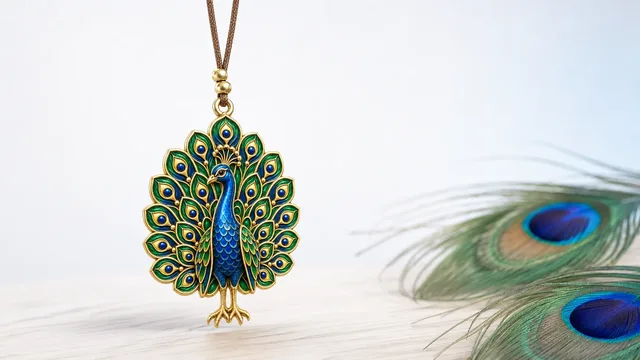
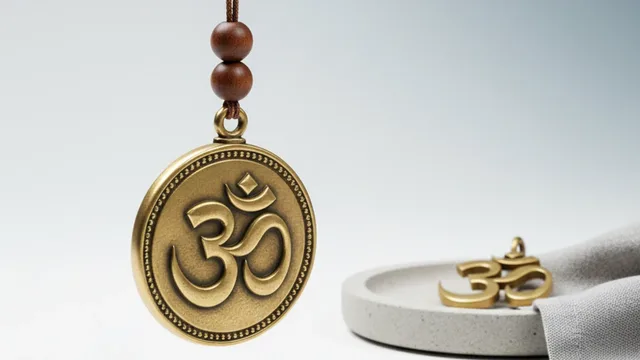
The warm direction is where a good-luck object fits. A single charm hanging from the top edge adds character without adding clutter, because it is one small thing, not a wall of stickers.
How do I add personality without clutter?
Pick exactly one signature element and let it carry the personality. When one thing is special, the rest can stay plain, and the whole screen feels considered.
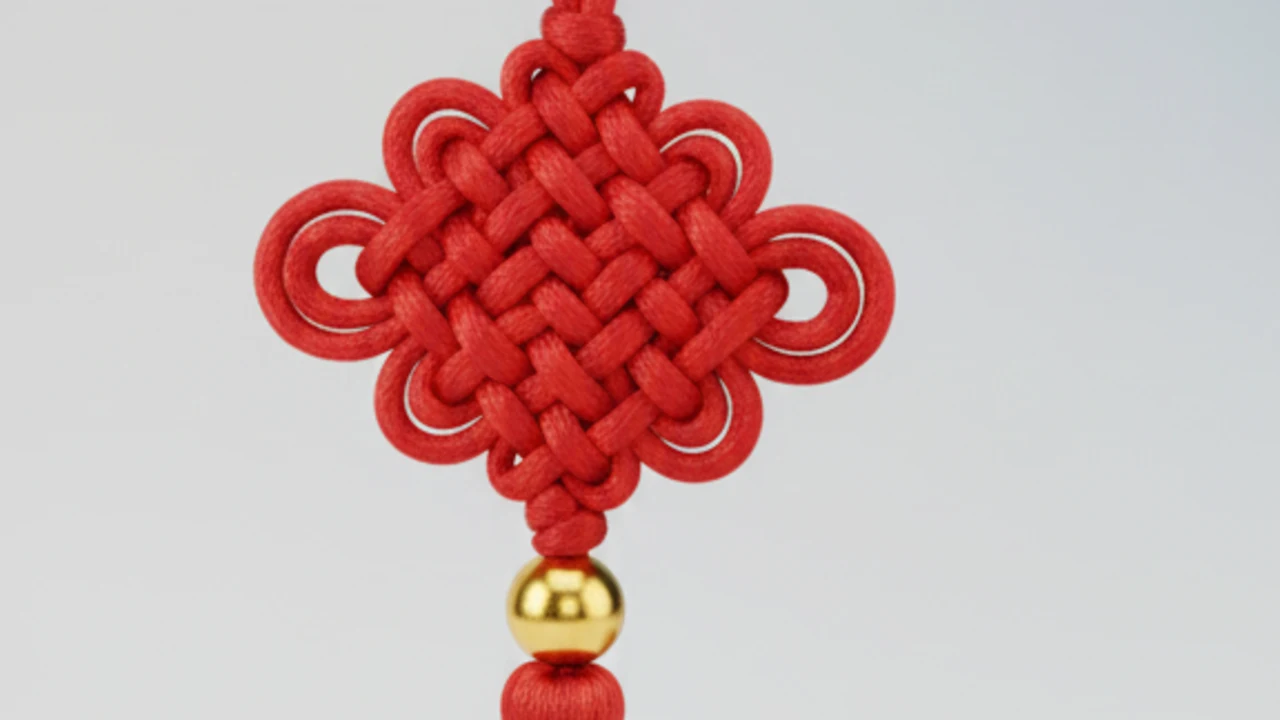
A charm on the top edge is a strong candidate for that one element. It hangs on a thin cord with real rope physics, sways when you move the cursor, and clicks straight through everything underneath, so it decorates without ever blocking a button.
A word of honesty, because these objects come from real traditions. A charm is a charm, not a promise; it marks a moment and steadies you the way a ritual does, and its origins deserve respect rather than kitsch.
The rule for personality without clutter: one signature element, everything else quiet. A single meaningful object beats a dozen decorations every time.
If you want more ideas that lean cozy rather than loud, our list of cute Mac apps that live in the menu bar keeps to the same principle.
Keeping customization from slowing you down
Every always-on tweak has a small cost, so choose ones that rest when you are not looking. Live wallpapers and constantly animating widgets redraw the screen and can nibble battery.
Prefer elements that mostly hold still. A charm that sways briefly and then settles spends most of its time idle, which keeps the footprint tiny.
Trim background apps you added and forgot. If a customization tool wants to run all day, make sure it earns that by being genuinely useful or genuinely calming. A tidy menu bar is part of that discipline, not separate from it.
A tasteful setup you can copy in ten minutes
Here is a starting point you can adjust. Begin by clearing the desktop and turning on Dock hiding.
Set a muted wallpaper and give your main folders one shared color. Add a single clock or calendar widget and remove the rest.
Trim the menu bar to the icons you truly use. Then, if you like a bit of warmth, hang one charm on the top edge and leave everything else plain. For a deeper, focus-first version of this, see the best Mac apps for a calm desk setup.
That is a complete, tasteful mac desktop customization: quiet base, one personal object, nothing fighting for your attention.
How do I customize the Mac for different moods?
Your screen does not have to look the same all year, so let the wallpaper and the one signature element shift with the season or the work. A calm, cool background in a busy month and a warmer one when you want ease is a small change that resets how the desk feels.
The key is to change one lever at a time. Swap the wallpaper, or swap the signature object, but not both at once, so the desk stays coherent rather than becoming a moodboard.
A charm makes this easy, because it is a single object you can change in a click. Hang a nazar during a stressful stretch, a horseshoe on a launch day, a bell when you want a clean start; the rest of the setup stays put while the one meaningful element carries the mood. Change one lever, not five and the desk always looks deliberate.
This is where taste and ritual meet. A tasteful desk is calm by default and personal on purpose, and a single changeable object gives you both without ever crossing into clutter.
Common customization mistakes to avoid
The biggest mistake is adding without removing, which turns any theme into noise within a week. Sweep the desktop and trim the menu bar before you add a single new thing.
The second is over-animating. Live wallpapers and constantly moving widgets look impressive for a day and then drain battery and pull your eye for months, so reserve motion for one gentle element at most.
The third is chasing a look from a screenshot that was staged, not lived in. A desk that photographs well is often too busy to work at, so optimize for the eighth hour, not the first glance. Keep the base quiet, keep the personality to one object, and your customization will hold up long after the novelty fades.
How do I customize my Mac desktop without making it messy?
Subtract first, then add one or two things. Clear stray files, hide unused icons, set a calm wallpaper, and trim the menu bar before you layer on widgets or a personal object. Mess comes from adding without ever removing.
What is the single best mac desktop customization?
A clean wallpaper plus a tidy menu bar gives the biggest visible payoff for the least effort. After that, one signature element, such as a meaningful widget or a single charm, adds personality without clutter.
Can I add a lucky charm to my Mac desktop?
Yes. A charm app hangs a single object like a nazar, horseshoe, or bell from the top edge of the screen, and it clicks through so it never blocks your work. Book My Luck is one such menu-bar app; you can check pricing if you want the details.
Do desktop customizations slow down a Mac?
Some do. Live wallpapers and constantly animating widgets redraw the screen and use a little more power, while still elements and lightweight menu-bar apps rest when idle. Favor the ones that hold still to keep things fast.
How do I keep my menu bar clean?
Remove icons you never click and consider a utility that tucks overflow items behind a divider. A clean menu bar makes the rest of your customization look intentional; our menu bar apps guide covers the basics.
Book My Luck today
Book My Luck is a desktop decoration for macOS 14+ and Windows 10/11. The desktop outside the charm remains clickable. The current Mac and Windows downloads are version 1.0.32, signed by KAK DIGITAL LLC. On Mac, Charm Centre controls size, cord length, placement, displays and motion. Collections and controls can differ between Mac and Windows.
There is no calendar integration, booked-moment scheduler or native-app free trial. Explore the website demo and regional pricing. One key activates one computer at a time; activation and license refresh require internet. Preferences are local, but purchasing, activation and website analytics use online services described in the privacy policy.
Hang one for the moment that matters
Book My Luck hangs a rendered charm from your Mac or Windows screen, with rope physics and manual interaction. Check the current platform release and regional price before buying.
Get Book My Luck →