Before you start
You’ll need a Windows 10 or 11 PC with an x64 processor, an internet connection for activation, and the license key from your Book My Luck email. This download is not a native ARM build and does not support 32-bit Windows.
Version 1.0.33 is signed by KAK DIGITAL LLC. Because the app is new, Windows may still display a notice on some PCs; if it does, the publisher shown should be KAK DIGITAL LLC. An official download does not make a security warning meaningless. Read the message before deciding whether to continue.
Already have the app? Follow the update instructions instead.
Pay once. Get your file and key.
Purchase Book My Luck through Stripe checkout. Enter an email address you can access and check it carefully before paying. Once your payment is confirmed, we’ll send your Windows download link and license key to the email address you entered at checkout.
Pay & get the fileAlready paid? Don’t buy again. Check the inbox of the email address you used at Stripe checkout, including Spam or Promotions. Open your Book My Luck license email and use its Windows download link. If it hasn’t arrived or you entered the wrong address, contact support with your checkout email and payment receipt or reference. Never send your full card details.
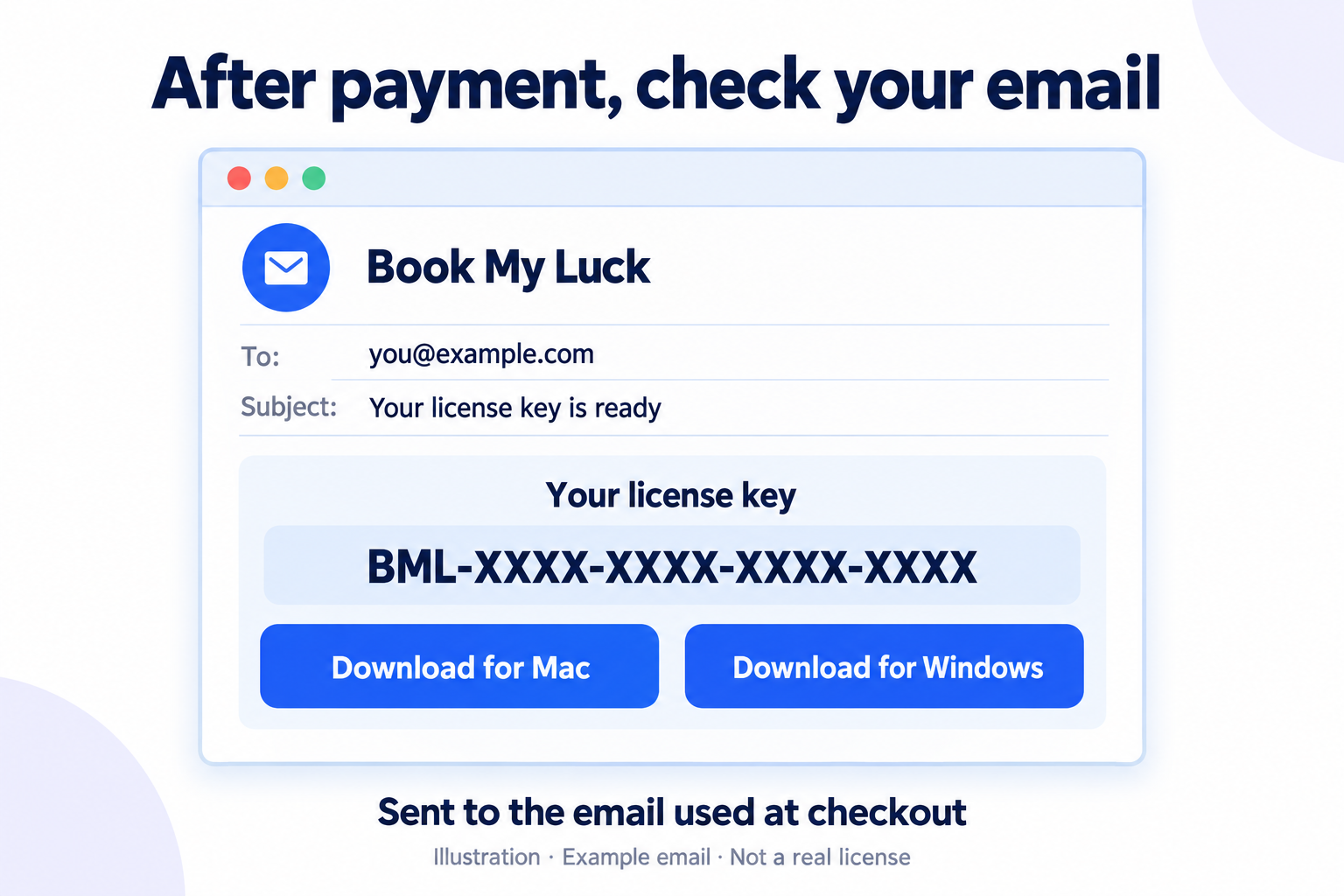
Select Download for Windows in the email. Windows uses a ZIP containing an EXE—not the Mac DMG.
Save the ZIP and wait for it to finish. Open your browser’s Downloads list and choose Show in folder, or open your Windows Downloads folder directly.
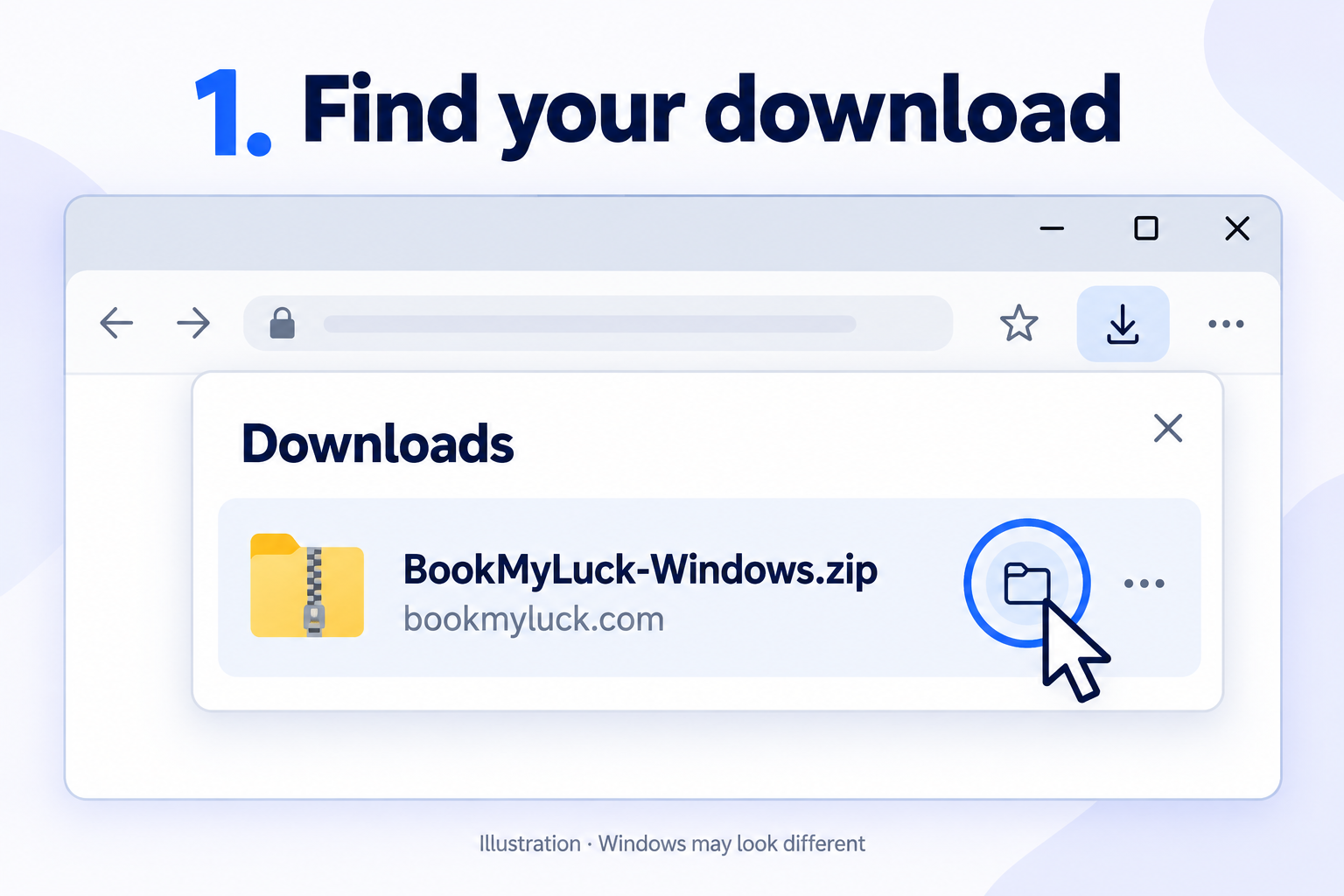
Check the source. The address should be bookmyluck.com. Avoid copies sent through unfamiliar websites or download mirrors.
Extract it first
- Right-click
BookMyLuck-Windows.zip. - Choose Extract All…, select a folder you can keep, and click Extract.
- Open the extracted folder. Inside, you’ll find
BookMyLuck.App.exe.
Keep this extracted folder somewhere you won’t accidentally delete it. Open the app from that folder—not from inside the ZIP. This release is a portable app, so there is no separate setup wizard.
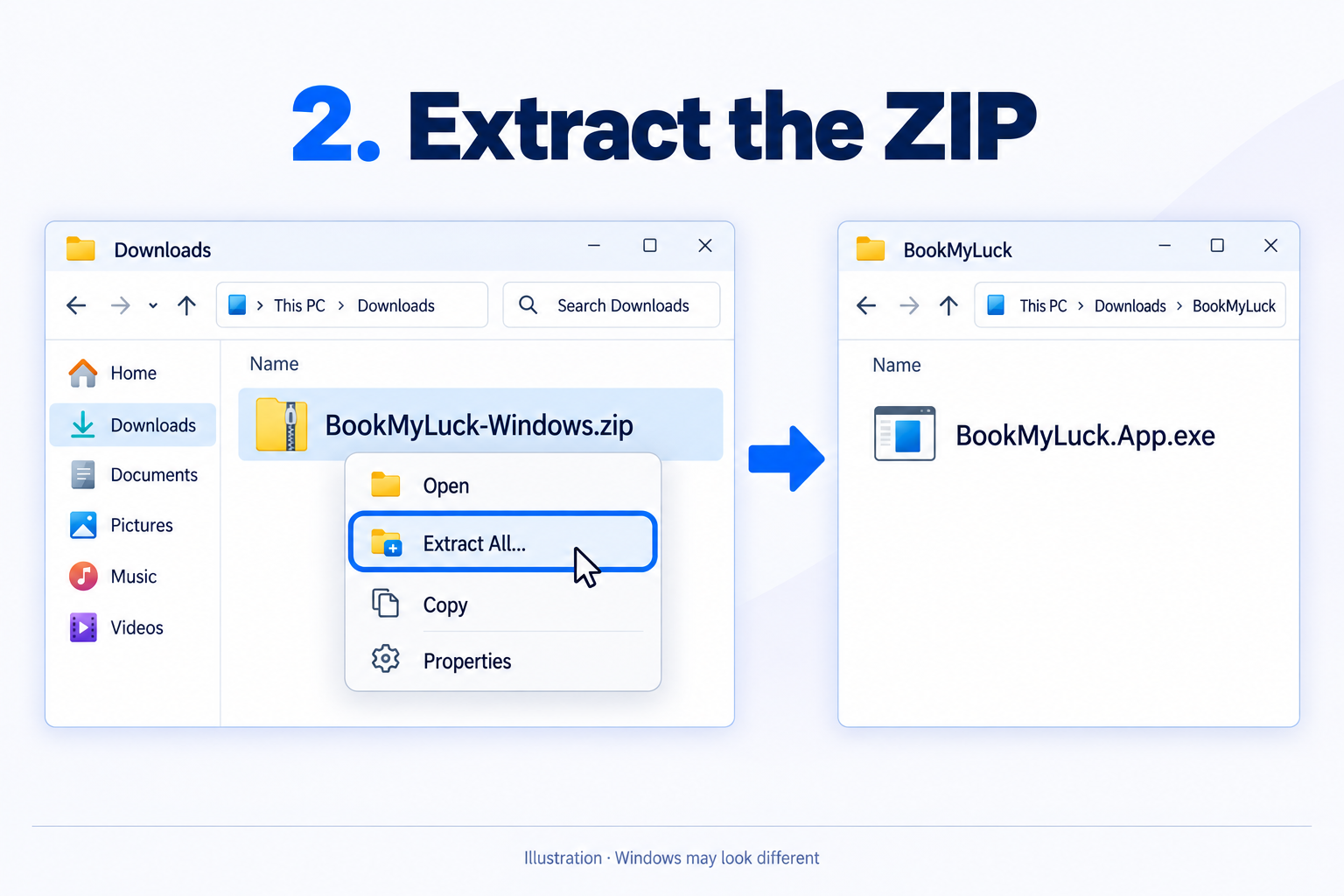
Need help finding Extract All? Microsoft’s ZIP instructions ↗
Open the app—and read any warning
Double-click BookMyLuck.App.exe. If the welcome screen opens, continue to activation.
Once this version opens, it creates Book My Luck shortcuts on your Desktop and in the Start menu. Keep the extracted folder in place so those shortcuts keep working. If your organisation blocks shortcut creation, you can still open the EXE directly.
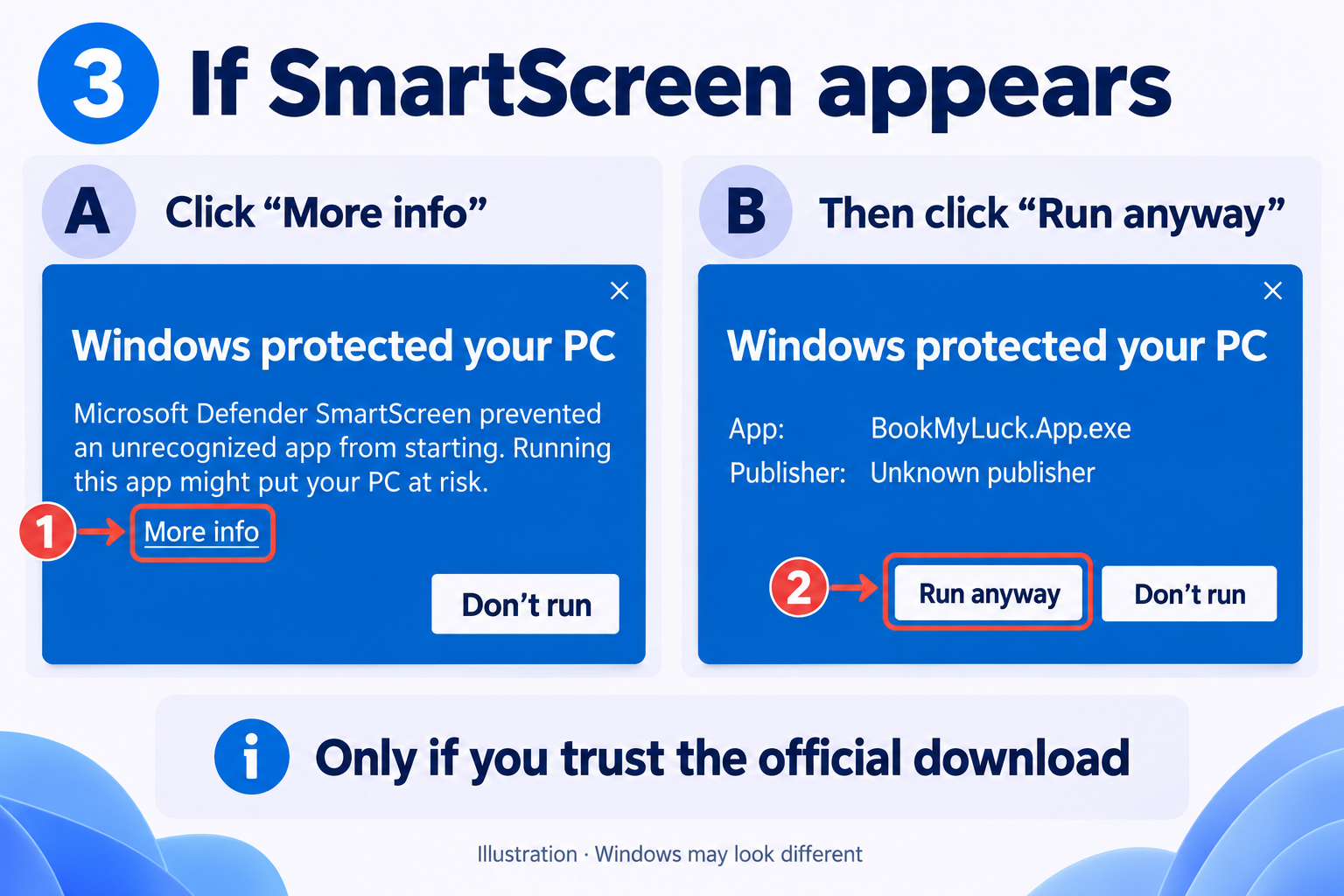
If you see “Windows protected your PC”
This can be a Microsoft Defender SmartScreen reputation warning. Book My Luck for Windows is signed by KAK DIGITAL LLC, so the publisher shown should read KAK DIGITAL LLC. A newer signature can still show this notice for a while until Windows has seen it often enough.
Only if you downloaded it from the official site, trust the file, and are allowed to install it on this PC:
- Select More info.
- Check that the app name is
BookMyLuck.App.exeand the publisher reads KAK DIGITAL LLC. - If available, select Run anyway to launch it. Choose Don’t run if you are unsure.
Smart App Control, an antivirus detection, or your organisation’s policy is different from this optional warning. Do not turn off Defender, add an exclusion, or bypass your workplace’s rules. Contact our support or your IT administrator with the exact message.
Why this happens: Microsoft on SmartScreen reputation ↗
Activate this PC
Open the Book My Luck license email sent to the address you entered at Stripe checkout. Copy the license key from that email and paste it into the welcome screen. Then select Activate this PC. Keep the PC connected to the internet while activation completes.
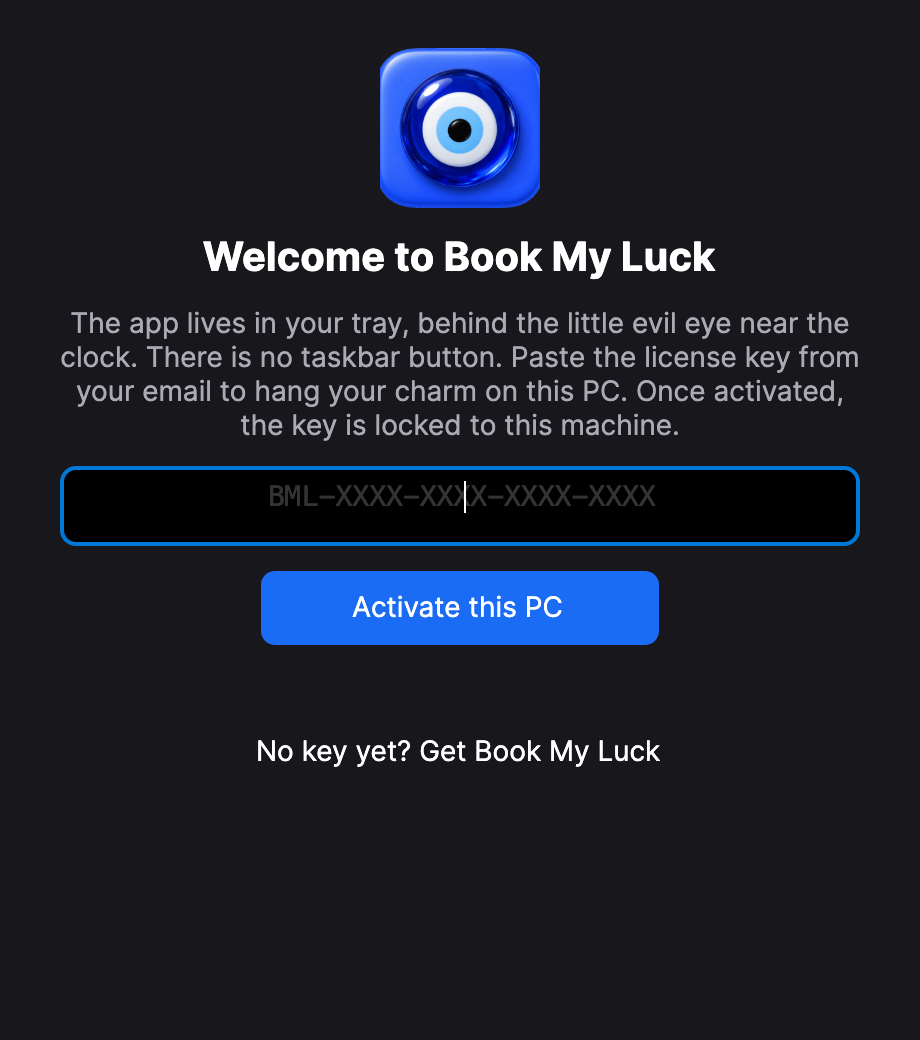
After successful activation, the app will show a running/activated message and your charm can hang from the top of the screen. A license activates one PC; an update on the same PC should retain its existing activation.
Keep your key private. Don’t include it in public screenshots. If activation fails, send support the error message—not your key in a public comment.
Find your little favourite
Look for the blue evil-eye icon in the system tray near the clock. If it isn’t visible, open the hidden-icons arrow. Open the icon’s menu and select Charm Centre….
Choose your charm—including Karuppu—then adjust its size, cord length and position. You can also choose a display and turn hanging motion or micro-actions on or off.
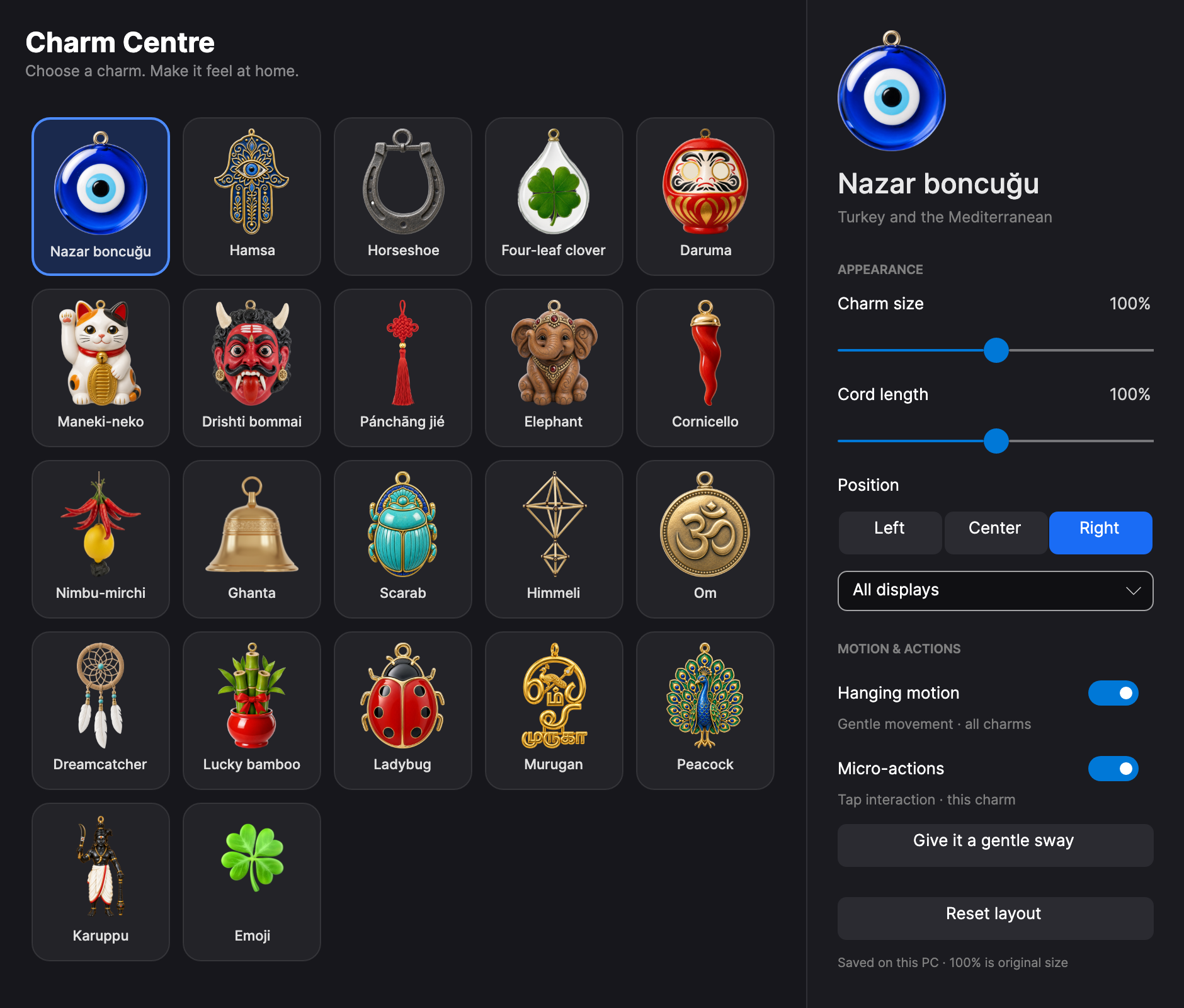
It lives in the tray. There is no permanent taskbar button for the hanging charm. Closing the welcome window hides that window; use Quit Book My Luck in the tray menu when you want to exit.
ALREADY INSTALLED?
How to update without losing your key
In the tray menu, choose Check for updates…. The updater downloads a new ZIP; it does not replace the app you’re running automatically.
- Download the update and extract it into a new folder. An updater download may be named
BookMyLuck-Windows-1.0.33.zip. - From the old app’s tray menu, select Quit Book My Luck.
- Open
BookMyLuck.App.exefrom the new folder. - Check the version in the tray menu. It should show 1.0.33. The app refreshes its Desktop and Start menu shortcuts to this new file. Update any custom shortcut separately.
Keep the old folder until you’ve confirmed the new app works. Don’t delete the Book My Luck settings folder: that’s where your saved preferences and activation data live.
A LITTLE HELP
Something not working?
The browser says the download is uncommon
A reputation warning can appear for a new download, even a signed one. First confirm the download came from bookmyluck.com. If your browser offers a keep option, continue only if you trust the file. If it reports malware, quarantine or a policy block, stop and contact support—don’t disable protection.
“This app can’t run on your PC”
This package targets x64 Windows. Open Settings → System → About and check System type. A 32-bit installation is unsupported; a Windows-on-ARM PC is not a verified native target for this build. If you have x64 Windows 10 or 11, download a fresh ZIP using the link in your license email and extract it again. Send support the exact error if it persists.
Smart App Control or my company blocks it
There may be no per-app override. Don’t turn off security features or change company policy to launch it. Ask your IT administrator, or contact support about availability of a signed release. Microsoft’s Smart App Control FAQ ↗
I entered my key, but activation failed
Check your internet connection and copy the complete key from the license email without extra spaces. If the error says it’s already activated on another PC, contact support about moving the activation. Don’t buy another copy just to troubleshoot the error.
The app is open, but I can’t see a charm
Check the blue-eye tray menu and confirm the PC is activated. Open the welcome screen and choose Hang my charm now. In Charm Centre, check the selected display and position; Reset layout can restore placement settings if the charm is off-screen.
Karuppu is missing, or I still see the old version
You may have reopened an older EXE or shortcut. Quit the tray app, open the EXE in your newly extracted folder, and verify version 1.0.33. Starting the new EXE while the old app is still running may simply bring the old instance forward.
The charm still looks blurry
Confirm you’re running 1.0.33, which retains full-resolution previews and adds monitor-aware image filtering. If it still looks blurry, send a full-resolution screenshot plus your screen resolution, Windows display scaling percentage and selected charm size. Those details help distinguish artwork rendering from display or screenshot scaling.
Still stuck? We’ll help.
Email the exact error, your Windows version and the app version. A screenshot helps—hide your license key and personal information first.
hello@bookmyluck.comAbout this guide
Written for Book My Luck 1.0.33 for Windows x64. The email, download, extraction and security images are instructional illustrations. The two app images are renders of the actual 1.0.33 interface code, including the centered activation button and current charm collection. They are not captures from a Windows computer.
Optional: verify the downloaded ZIP
For the v1.0.33 ZIP received through your license email, the SHA-256 is:
7a3a3af9be4be1fc6546b300664b28b41e9f30cac6224353493026853a471e94In PowerShell, use Get-FileHash -Algorithm SHA256 followed by the quoted path to your downloaded ZIP. A matching hash confirms the file matches this release; it is not a malware scan or a Microsoft safety endorsement.