Which payment methods can I use?
Use the options displayed in your Book My Luck checkout. Stripe supports many methods, but not every method is available for every purchase.
| Method | What to expect |
|---|---|
| Credit or debit card | Choose Card when shown. Your bank must authorise the payment; accepted networks and currency support can vary. |
| UPI · India | Our INR checkout requests UPI and card payments. Use UPI only if it appears in your actual checkout, then follow its instructions. |
| Apple Pay, Google Pay or Link | Use an express option only if Stripe displays it. Availability depends on the checkout settings, device, browser, location and eligible saved payment method. |
| Other methods | Outside India, Stripe selects eligible methods from the checkout configuration. We do not promise PayPal, bank transfer, instalments or every method in Stripe’s catalogue. |
Why the options differ: Stripe’s dynamic payment methods ↗
Choose your license and check the total
Start on Book My Luck’s pricing section. Choose the available plan and, where offered, the number of licenses you need. If you have a wheel offer, check that it appears in the final checkout total before paying.
Read the currency, quantity and total on Stripe. If anything is different from what you intended, go back and correct it before submitting payment.
Choose your license →Use an email you can open
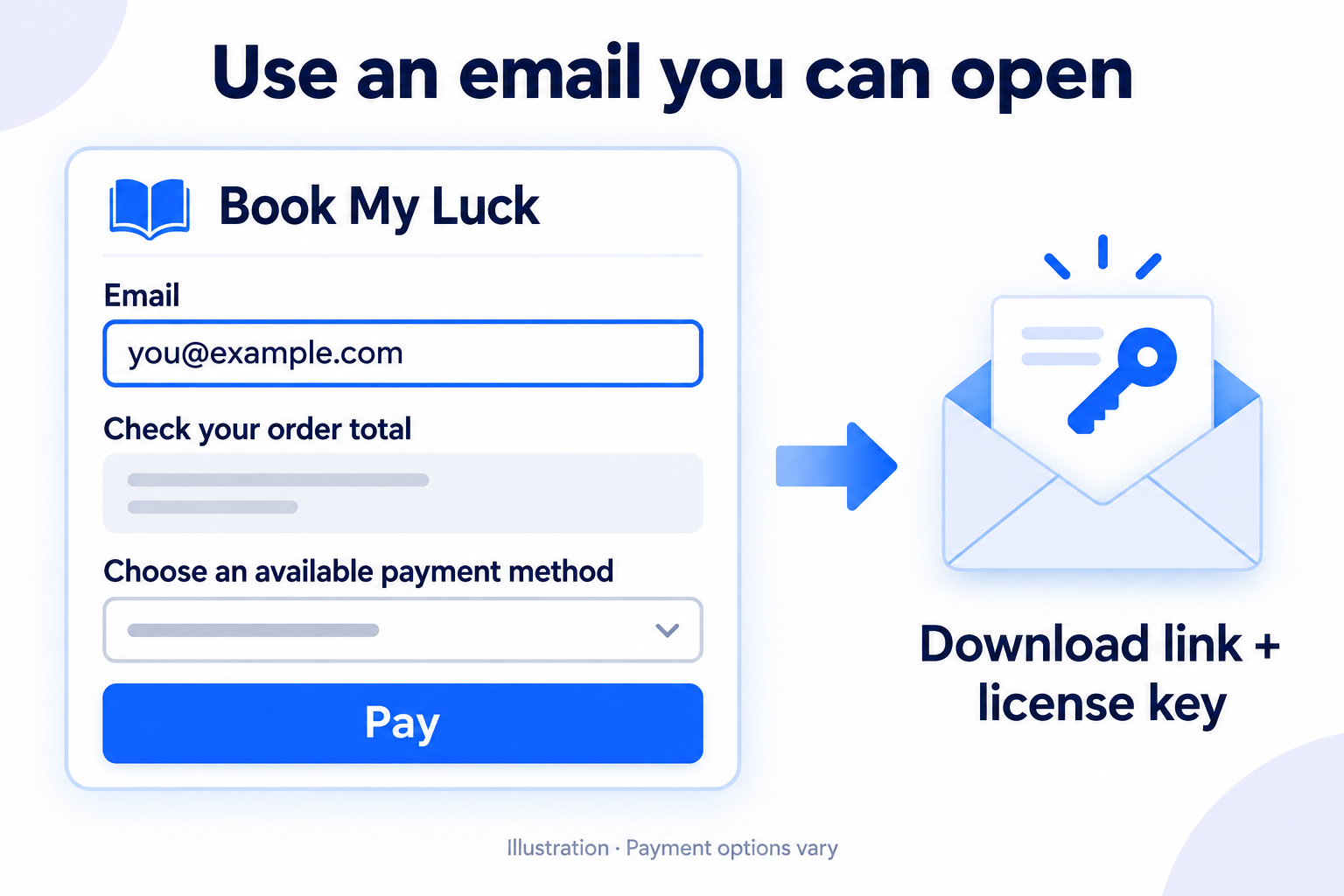
Enter your email address at Stripe checkout and check every character. This is where we send your license key and app download links after confirmed payment.
If a wallet or Link fills your details automatically, check the email it supplies too. You do not need to use a different email to install on Mac or Windows.
Complete the payment
Paying by card
- Select Card and enter your card details into Stripe’s checkout fields.
- Fill in the billing details Stripe requests. These may include your name, country, postcode or address. Use the details associated with your payment method.
- Check the total again, then select the payment button.
- If your bank requests an OTP, banking-app approval or other verification, complete it in the bank’s secure flow.
Bank authentication varies: Stripe’s 3D Secure explanation ↗
Paying by UPI, if offered
- Select UPI in checkout.
- Follow the displayed QR-code or supported-app instructions, if presented. Use only the payment request created by this checkout.
- Verify the merchant and amount in your UPI app, then authorise the payment there.
- Return to checkout and wait for confirmation.
Your PIN stays in your UPI app. Never type a UPI PIN into a support message or share it with anyone. We do not ask for an OTP or PIN by email.
Paying with a wallet or Link, if offered
Select the option shown, review the selected payment method, email and total, then approve using the wallet’s or Link’s verification flow. Return to checkout and allow it to finish. A missing wallet button is not a reason to send money manually; use another displayed method.
Wait for confirmation—don’t pay twice
Keep the checkout open while payment is processing. After it succeeds, Stripe normally returns you to Book My Luck’s confirmation page.
If money appears debited but checkout is still pending, don’t immediately submit a second payment. Check your payment status and contact support with the payment reference. A temporary bank authorisation is not always a completed charge.
Opening checkout or pressing Pay alone doesn’t release a license. Your payment must be confirmed successfully first.
Check your email for the key and download
Open the inbox for the email address used at Stripe checkout. Look for the Book My Luck license email, including Spam or Promotions. A payment receipt may arrive separately; the license email contains your key and download links.
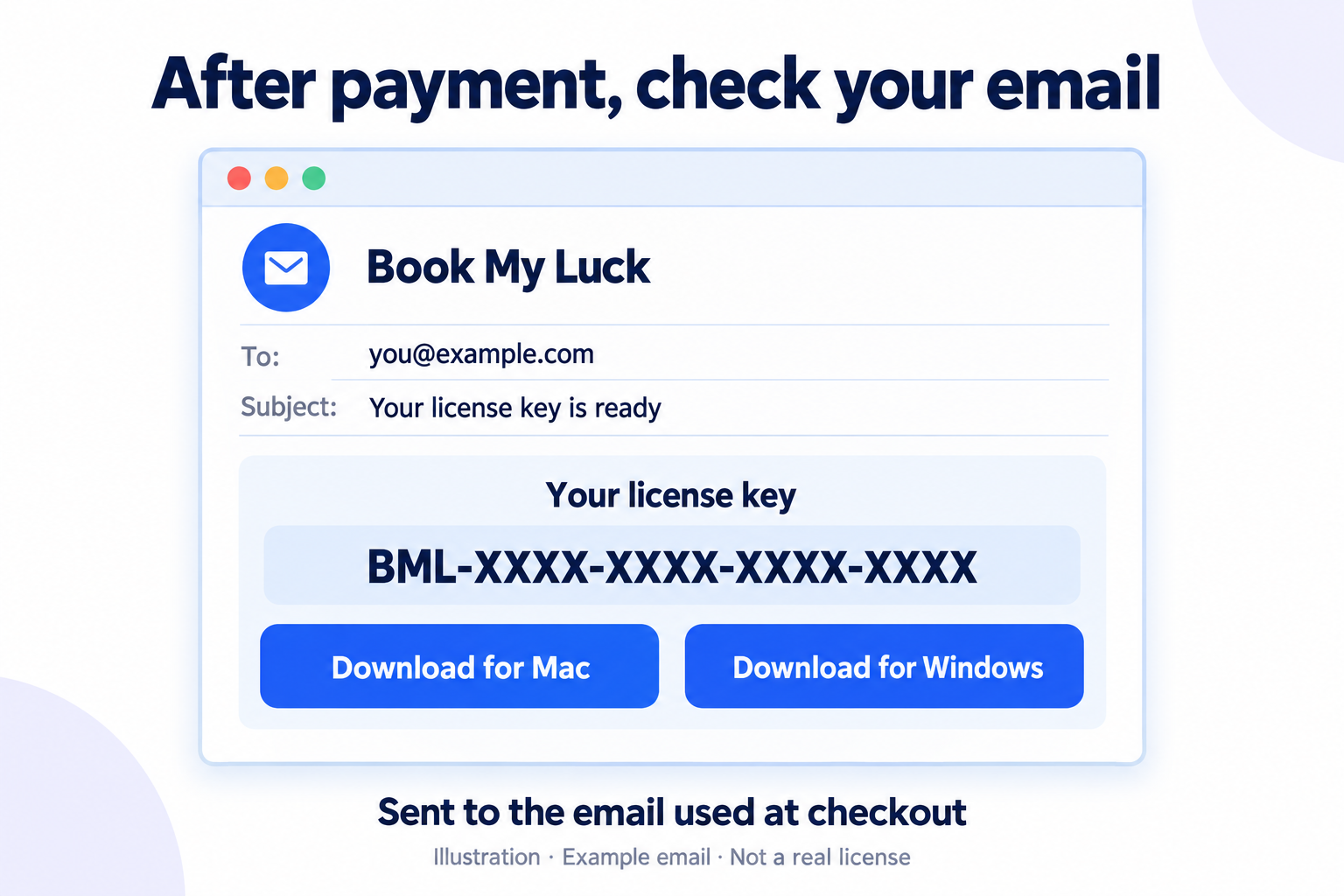
Choose Download for Windows for a ZIP containing the EXE, or Download for Mac for the DMG. These are download links—not email attachments.
Then follow the Windows installation guide or Mac installation guide. Keep your license key ready to paste into the app.
Payment questions
Why is Stripe asking for my address?
Checkout can request billing information needed for the selected payment method, verification or tax handling. Complete the fields actually shown with accurate information. This is a digital product; entering a billing address does not mean a physical item will be shipped.
My card was declined
Check the entered details and your bank’s message. Your bank may restrict online or international payments. Ask the bank or use another available payment method. Don’t repeatedly resubmit without checking the reason.
I can’t see UPI or my usual wallet
Payment options depend on eligibility and checkout configuration. Use an option actually displayed or contact support. Do not pay to a UPI ID or bank account supplied through an unsolicited message.
I used the wrong email, or no license email arrived
Check Spam and Promotions first. If it is still missing, email support with the checkout email address and receipt or payment reference. If the address was wrong, include the correct address too. Support may need to verify ownership. Don’t purchase again just to receive your file.
Is this a subscription?
The website checkout is a one-time purchase. Check the plan and order total before paying. Buying additional licenses is a separate purchase, not an automatic recurring charge.
Need help with an order?
Send your checkout email, payment reference and exact problem. Never send your full card number, CVC, bank password, OTP or UPI PIN.
hello@bookmyluck.com ↗About the illustrations
Instructional images are labelled illustrations, not captured customer emails or live checkout screens. Keep your personal and payment information private.