Before you start
This guide covers the direct-download edition of Book My Luck for MacBook Air, MacBook Pro and other compatible Macs. You need macOS 14 Sonoma or later. The download contains both Apple silicon and Intel versions.
Choose Apple menu → About This Mac to check your macOS version. Keep an internet connection available for activation. If you purchased through the Mac App Store, use the App Store’s download and update flow instead of these license-key instructions.
Pay once. Then check your email.
Choose your license on our website and pay through Stripe. Enter an email address you can access and check it before paying. After your payment is confirmed, your download link and license key go to that checkout email address.
Pay & get the file →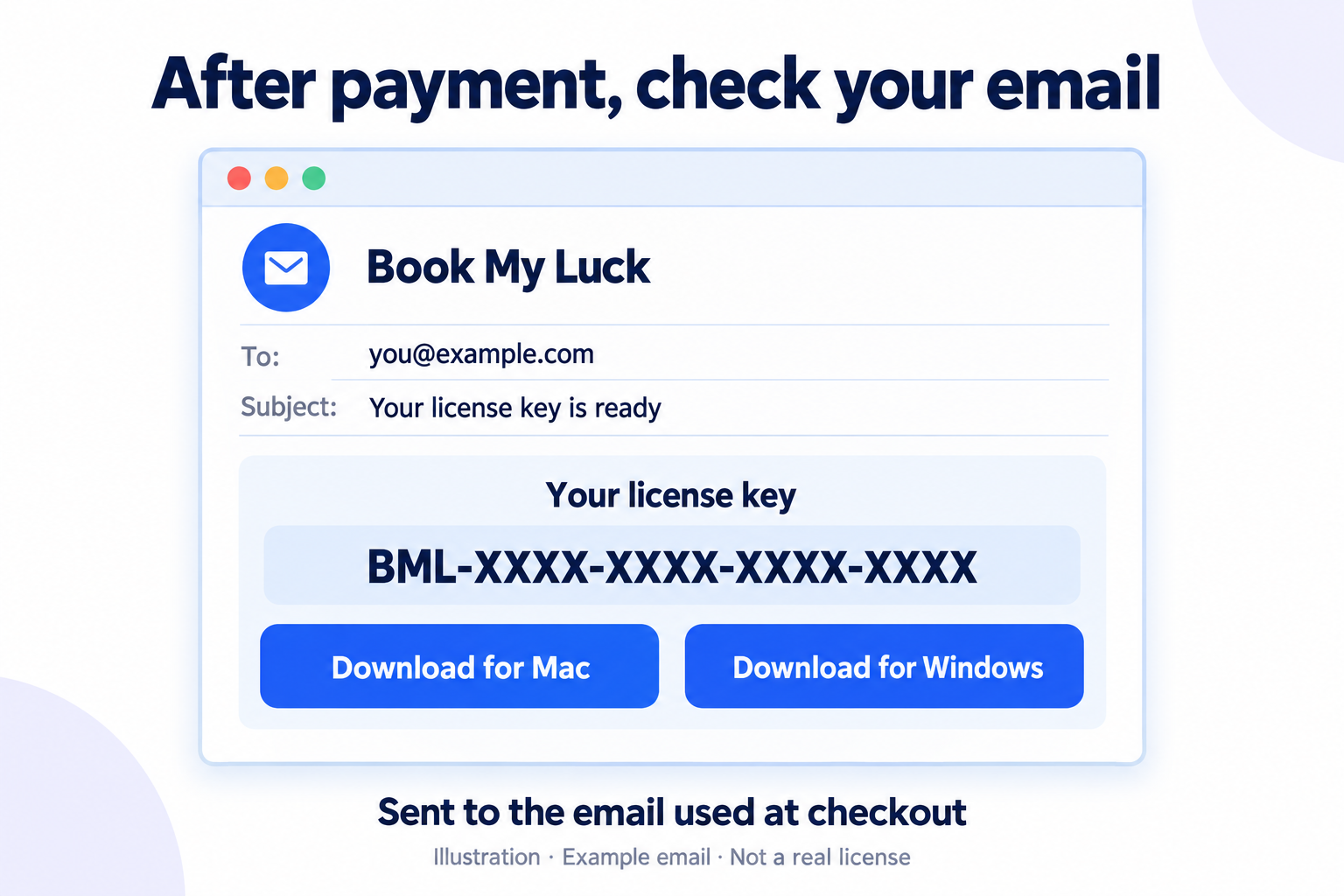
Already paid? Don’t buy again. Check that inbox, including Spam or Promotions. If the email is missing or the address was wrong, email hello@bookmyluck.com with the checkout email and payment reference. Never send full card details.
In your license email, select Download for Mac. The file is BookMyLuck.dmg. Choose the Mac link—not the Windows ZIP.
Move the app to Applications
- Wait for
BookMyLuck.dmgto finish downloading. - Double-click it in Finder’s Downloads folder.
- Drag Book My Luck into Applications. Wait for copying to finish.
- Open Finder → Applications and open Book My Luck from there.
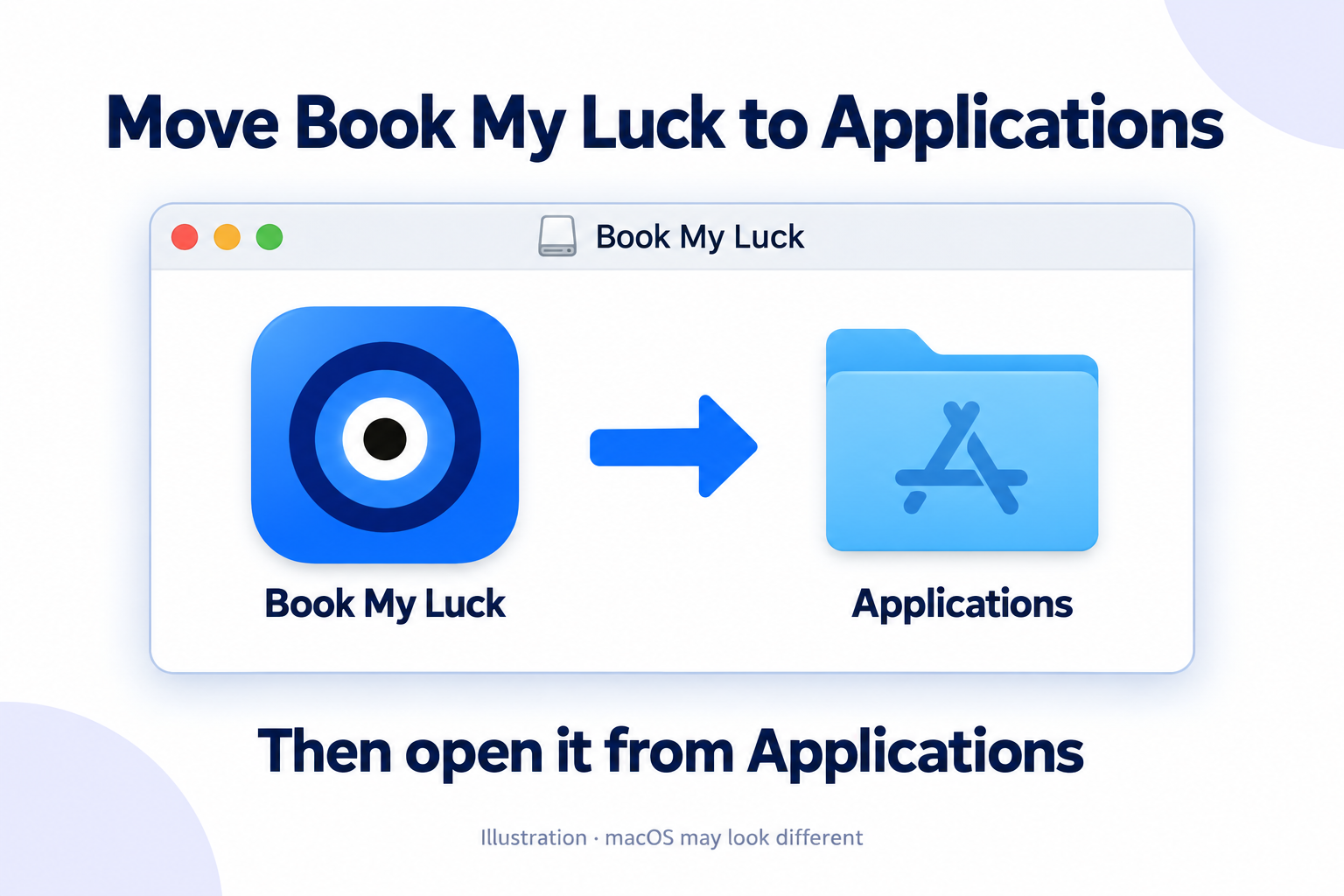
Keep the installed copy. Run the app from Applications, not from the mounted disk image. Once copying is complete, eject the Book My Luck disk image in Finder.
Open it for the first time
If macOS asks whether to open an app downloaded from the internet, check that it is Book My Luck and came from your official download, then choose Open if you trust it.
The direct-download Mac release uses signing and notarization. This does not mean every security alert should be ignored.
Don’t disable Gatekeeper, run Terminal bypass commands or remove quarantine attributes. Download a fresh copy through your license email and contact support if the warning remains. On a work Mac, check with IT.
Activate this Mac
- Open the Book My Luck license email sent to the address used at Stripe checkout.
- Copy the complete license key—not the payment receipt number.
- Paste it into the app’s welcome screen and choose Activate this Mac.
- Wait for the activation result while connected to the internet.
Activation uses a device on your license. Updating on that same Mac should keep your license and preferences. Don’t share your key in a public screenshot.
Meet your menu-bar companion
Look for the blue evil eye in the Mac menu bar, near the clock. The app lives there rather than keeping a Dock icon open.
Open its menu, choose Charm Centre, and select your charm. Adjust appearance and placement using the available controls. If you don’t see the charm, use the menu’s show control and check your selected display.
To quit: use Quit Book My Luck in the menu-bar menu. Closing the welcome window does not necessarily quit the app.
Updating an existing installation
Use Check for updates in the app. For a manual update, download the Mac DMG through your license email, quit the currently running app, and copy the new Book My Luck app into Applications. Confirm replacement of the old application only after checking the filename.
Reopen it from Applications. Keep your settings and license data; you don’t need to buy again just to update. Don’t try to install a Windows ZIP on macOS.
Something not working?
I downloaded a ZIP or EXE
That is the Windows package. Return to your license email and choose Download for Mac to get the DMG. Don’t rename a file’s extension to make it appear compatible.
My Mac is running an older macOS version
This app requires macOS 14 or newer. Check whether your Mac supports a compatible macOS update before purchasing. Ask support if you are unsure.
I paid, but can’t find the license email
Check the address used at Stripe checkout, Spam and Promotions. Your Stripe receipt and Book My Luck license email may be separate messages. Contact support with your checkout email and payment reference; do not pay again just to get the file.
Activation says the key is already in use
Make sure you’re using the right key. If you replaced your computer, contact support about moving the activation. A key already assigned to a different computer cannot simply be used on another.
We’ll help you get started.
Send your macOS version, Book My Luck version and exact error. Hide license keys and personal information in screenshots.
hello@bookmyluck.com ↗About the illustrations
Instructional images are labelled illustrations, not captured customer emails or live checkout screens. Keep your personal and payment information private.